(302) 262 8484
How to See Saved Wi-Fi Passwords on Windows in Seconds

You might need to pull up your home Wi-Fi password for a guest, or connect your phone to a network your laptop joined months ago. Instead of crawling under a desk to read the sticker on a router, you can retrieve the security key directly from your PC. If you’re running a Windows machine, you can see your saved Wi-Fi passwords using a few built-in tools, though you should also prioritize Small Business Cybersecurity Protection to keep your network secure.
The operating system keeps a database of every wireless network you’ve ever connected to. This allows your machine to reconnect automatically, but it also means those passwords are saved on your hard drive, which is why robust IT Infrastructure for Small Businesses is essential for protecting sensitive data. Retrieving them is straightforward, and you don’t need to install any third-party software.
The Quick Way to See Saved Wi-Fi Passwords on Windows
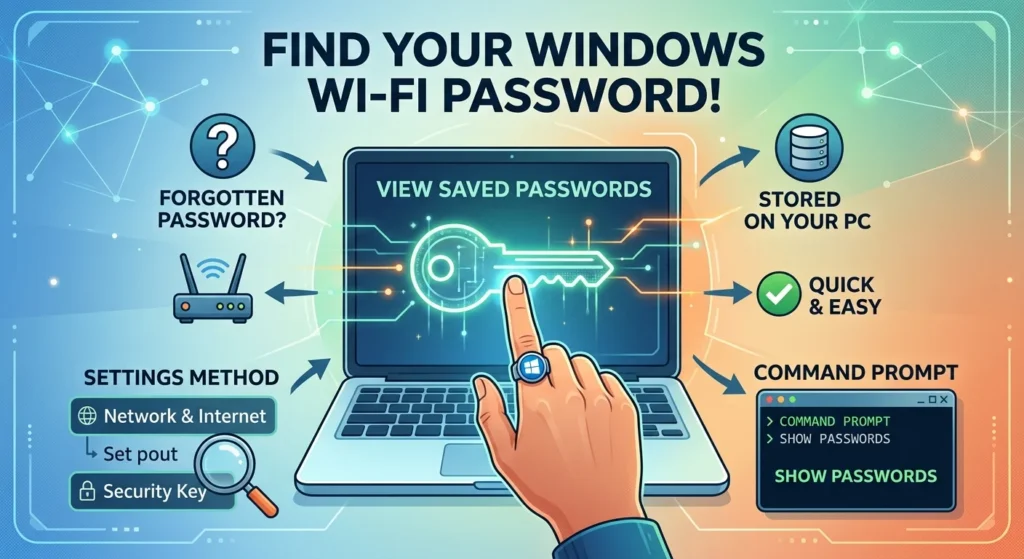
If you’re currently connected to the network, Windows 11 makes finding the password easy. Microsoft added a direct view button in recent versions of the operating system, so you no longer have to dig through legacy menus.
- Open your Settings app by pressing the Windows Key + I.
- Navigate to Network & internet, then click on Wi-Fi.
- Select Manage known networks and click on the specific network you want to inspect.
- Look for the Wi-Fi security key section and click the View button to reveal the password.
If you’re running Windows 10, or if that button is missing from your current build, you can use the classic Control Panel. It takes a few more clicks, but it works consistently.
Using the Classic Control Panel to View Saved Passwords
Open the Run dialog box by pressing Windows Key + R, type control, and press Enter to launch the Control Panel. Navigate to Network and Internet and select Network and Sharing Center.
You’ll see your active connection listed next to the word Connections. Click your Wi-Fi network name to open the status window. From there, click Wireless Properties, select the Security tab, and check the Show characters box. The password will appear in plain text.
Seeing Saved Wi-Fi Passwords on Windows Using Command Prompt
The graphical methods work well when you’re actively connected to a network, but they don’t help if you need the password for a coffee shop you visited last month or your office network while working remotely. To see passwords for networks you aren’t currently connected to, you need to use the Command Prompt.
This process doesn’t require any coding experience and takes less than thirty seconds.
Step 1: List All Stored Network Profiles
Open the Windows search bar, type cmd, and click Command Prompt. You don’t need administrator privileges for this step. Once the window opens, type the following command and press Enter:
netsh wlan show profiles
This command lists every Wi-Fi network profile saved on your computer. Scroll through the output to find the exact name of the network you need.
Step 2: Reveal the Plain Text Password
Once you have the network name, you can extract its password. Type the following command, replace the placeholder with your target network name, and press Enter:
netsh wlan show profile name='YOUR_NETWORK_NAME' key=clear
The screen will populate with a list of technical details. Scroll down to the Security settings section and look for the line labeled Key Content. The text next to it is the plain text Wi-Fi password.
What This Means for Your Security
While this method is helpful, it also highlights a security concern. If someone gains physical access to your unlocked computer, they can use these exact steps to harvest every Wi-Fi password you’ve ever saved. This includes your home network, your office network, and your friends’ private networks.
To protect your data, never leave your laptop unlocked in public spaces. It’s also good practice to periodically prune your saved networks. You can do this by opening your Wi-Fi settings, viewing your known networks, and clicking Forget on the ones you no longer use. For more tips on keeping your system safe, see our guide on [how to secure your local network].