(302) 262 8484
What to do when the blue screen of death strikes

Seeing the blue screen of death is a right of passage for Windows users. Your screen suddenly goes blue, a sad face appears, and your unsaved work is gone. Panic is the natural response, but understanding the reality of a digital disaster can help you stay calm and take the right steps.
But before you assume your computer is completely dead, take a breath.
A system crash is actually just Windows protecting itself from further damage. It stopped everything to prevent a catastrophic failure. You can usually fix the problem yourself without spending money on an expensive PC repair in Delaware.
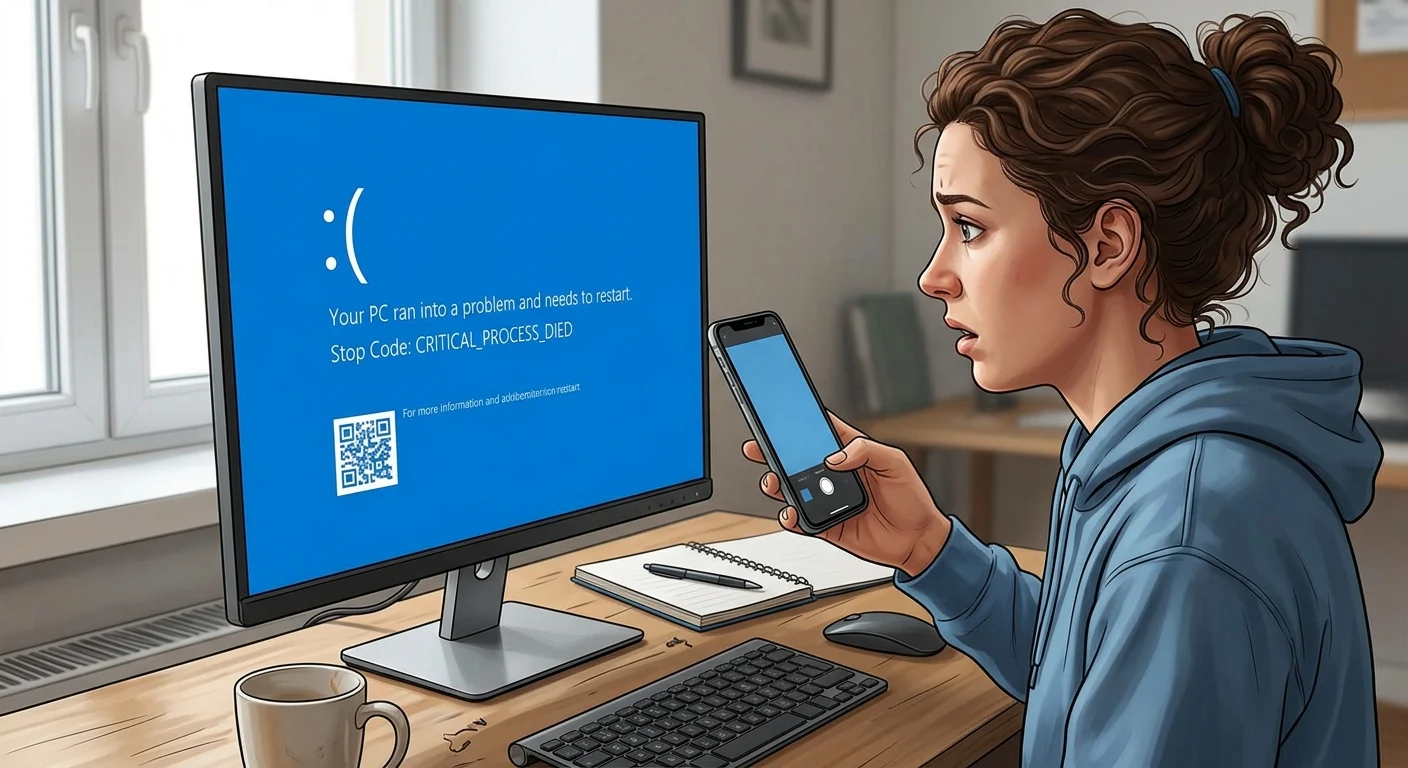
The very first step: Grab your phone
Do not just stare at the screen or immediately hold down the power button. Grab your phone and take a picture of the monitor. Seriously.
The error screen usually disappears quickly as your computer automatically restarts. You need to capture the specific error message sitting at the very bottom of the screen. This is called the stop code.
Why the stop code matters
That string of all-caps text is your golden ticket to fixing the problem. Without it, you are just guessing in the dark. Modern versions of Windows 10 and 11 even give you a QR code to scan.
Once your computer restarts, you can search that exact code online to see what went wrong.
Common blue screen of death error codes
If you managed to snap a photo of your screen, check if you see one of these common errors. They tell you exactly where to start troubleshooting.
- IRQL_NOT_LESS_OR_EQUAL: This usually means a bad driver or faulty software is messing with your system memory.
- MEMORY_MANAGEMENT: This almost always points to failing RAM sticks or a heavily corrupted hard drive.
- WHEA_UNCORRECTABLE_ERROR: This is the one you actually want to worry about. It usually indicates failing physical hardware.
- CRITICAL_PROCESS_DIED: A core Windows process randomly stopped working. This is often fixed by repairing system files or seeking professional IT consulting if the issue persists.
Quick fixes for a blue screen of death
Here is the thing. Most of these crashes are caused by something you recently changed. Software and hardware do not always play perfectly together.
Disconnect your peripherals
Did you just plug in a cheap webcam or a new external hard drive? Unplug it. Faulty USB devices and terrible drivers are notorious for causing system crashes.
Strip your computer down to just the mouse and keyboard. If the computer boots up fine and stays stable, you found the culprit.
Uninstall that recent Windows update
We all know Windows updates can be incredibly buggy. If your system was running perfectly yesterday and crashes today, a background update is likely to blame.
Boot into Safe Mode and roll back any recent updates. If you need help getting there, check out our guide on [booting Windows in Safe Mode]. Safe Mode loads Windows with the bare minimum drivers so you can safely remove bad software.
Check your system memory
Bad RAM is a massive offender here. If your memory sticks are failing, Windows will panic and shut down to prevent data corruption, which is why we often recommend proactive IT monitoring for small business owners to catch hardware issues early.
You can run the built-in Windows Memory Diagnostic tool to see if your hardware is actually failing. Just type “memory” into your Windows search bar and run the app. It will restart your PC and test your RAM for errors.
When should you actually worry?
A single blue screen is not a death sentence. Sometimes a random glitch happens, the computer restarts, and you never see the error again. That is just the reality of using computers.
But if you are getting stuck in a loop where the computer crashes every single time you turn it on, you have a bigger problem. Constant crashes usually point to failing hardware like a dying motherboard or a fried graphics card.
If you have tried updating your drivers and rolling back Windows but the crashes keep happening, it might be time to bring in a professional.
Keeping the crashes away for good
Once you get your system running smoothly again, you want to keep it that way.
Always update your graphics drivers directly from the manufacturer website. Do not rely on Windows Update to find the best drivers for your specific gaming hardware. Keep an eye on your computer temperatures too. Overheating is a silent killer for laptops and desktop PCs alike.
A little basic maintenance goes a long way. Keep your important files backed up, update your software, and blow the dust out of your PC case once in a while. Your computer will thank you.