(302) 262 8484
Turn On This Secret Smartphone Setting Before Hitting the Repair Shop

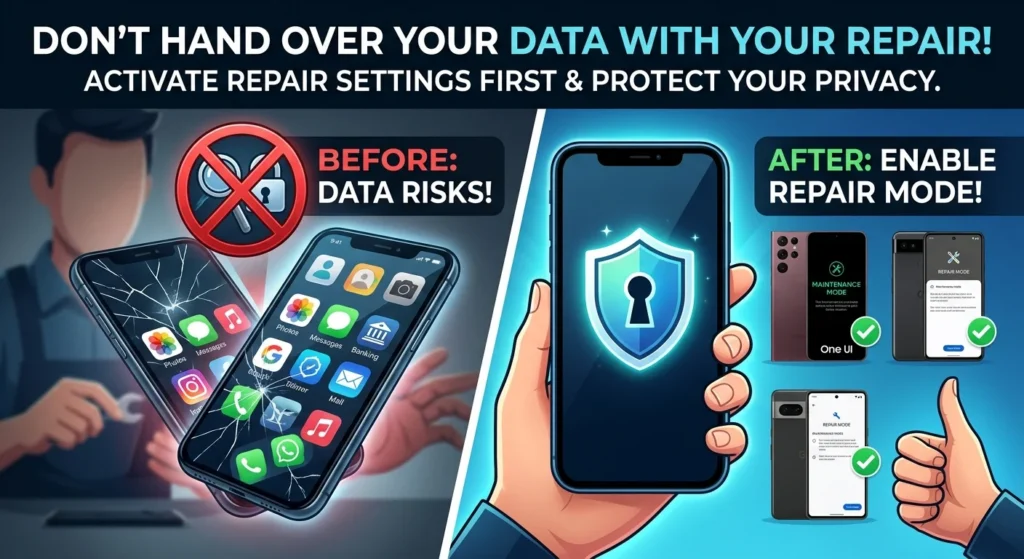
Handing over a phone with a shattered screen often means handing your personal data to a complete stranger. Even if you trust the repair shop, giving someone unrestricted access to your device is a major privacy risk. Fortunately, you can protect your information by enabling a specific smartphone setting before you drop it off.
Why You Need a Repair Setting Before Hitting the Shop
Your phone holds your banking details, private photos, work emails, and personal messages. While most repair technicians are professionals, you should always be wary of Why Cheap Mall Kiosk Phone Screen Repairs Are a Risky Bet, as giving them full access leaves you vulnerable to anyone tempted to snoop or steal data. To solve this, major phone manufacturers created dedicated modes that lock down your personal files while still letting technicians run necessary diagnostic tests.
How to Turn On the Repair Setting on Samsung
If you own a Samsung Galaxy device running One UI 5.0 or later, you have access to a built-in feature called Maintenance Mode. This creates a separate user account for the technician. They can test the hardware, but your photos, messages, and accounts remain completely invisible.
Here is how to turn on Maintenance Mode:
- Open your Settings app.
- Scroll down and tap on Device Care.
- Scroll to the bottom and select Maintenance Mode.
- Tap Turn On, choose whether to create a log, then tap Restart.
Once your phone reboots, it will look like a factory-new device. When you get it back, swipe down the notification shade, tap to exit, and enter your PIN to restore your standard profile.
Google Pixel Repair Mode
Google introduced its own version of this feature starting with Android 14. Repair Mode boots your Pixel into a clean, secure partition with limited functions.
The technician can check if a new screen or battery works, but they cannot access your personal files.
To activate Repair Mode on a Pixel:
- Go to Settings.
- Tap on System, then select Repair Mode.
- Follow the prompts, enter your security PIN or password, and let the system reboot.
Make sure you have at least 2 GB of free space on your phone before launching this mode.
Apple iPhone Repair State
For years, Apple required users to turn off Find My before getting a repair. This disabled Activation Lock, leaving the phone vulnerable to theft during transit. If you had Stolen Device Protection turned on, you also had to wait an hour at the repair shop just to disable it, which is why you should learn how to properly Protect Your iPhone: Why You Must Turn On Stolen Device Protection Right Now.
Starting with iOS 17.5, Apple introduced Repair State. This feature keeps Find My active and trackable while putting your phone into a secure state for Apple technicians.
To trigger Repair State on your iPhone:
- Open the Find My app on your iPhone.
- Tap the Devices tab and select your iPhone.
- Scroll down and tap Remove This Device.
- Confirm with your Apple Account password. Instead of deleting the phone, it will enter Repair State and display a stethoscope icon with a ‘Ready for Repair’ banner.
Essential Checklist Before Leaving Your Phone at the Shop
Using these built-in repair modes is highly recommended, but you should take a few extra precautions to ensure your data remains secure.
Run through this quick checklist before dropping off your device:
- Back up everything: Even though these modes protect your data, hardware repairs can sometimes go wrong. Always back up your phone to iCloud, Google Drive, or a computer first (see our guide on how to back up your smartphone).
- Remove your SIM card: Take your physical SIM card out of the phone. You can easily pop it into a temporary device while yours is in the shop.
- Remove external storage: If your phone has a microSD card, take it out so it does not get lost or damaged.
- Write down your IMEI number: Dial *#06# to get your unique IMEI number. This ensures you get your exact phone back, not a refurbished swap.
Handing your phone over for repairs does not have to be a privacy gamble. Taking a few minutes to enable these settings keeps your personal information private while the technicians do their job.