(302) 262 8484
The Illusion of Security: Why Browsers Fall Short

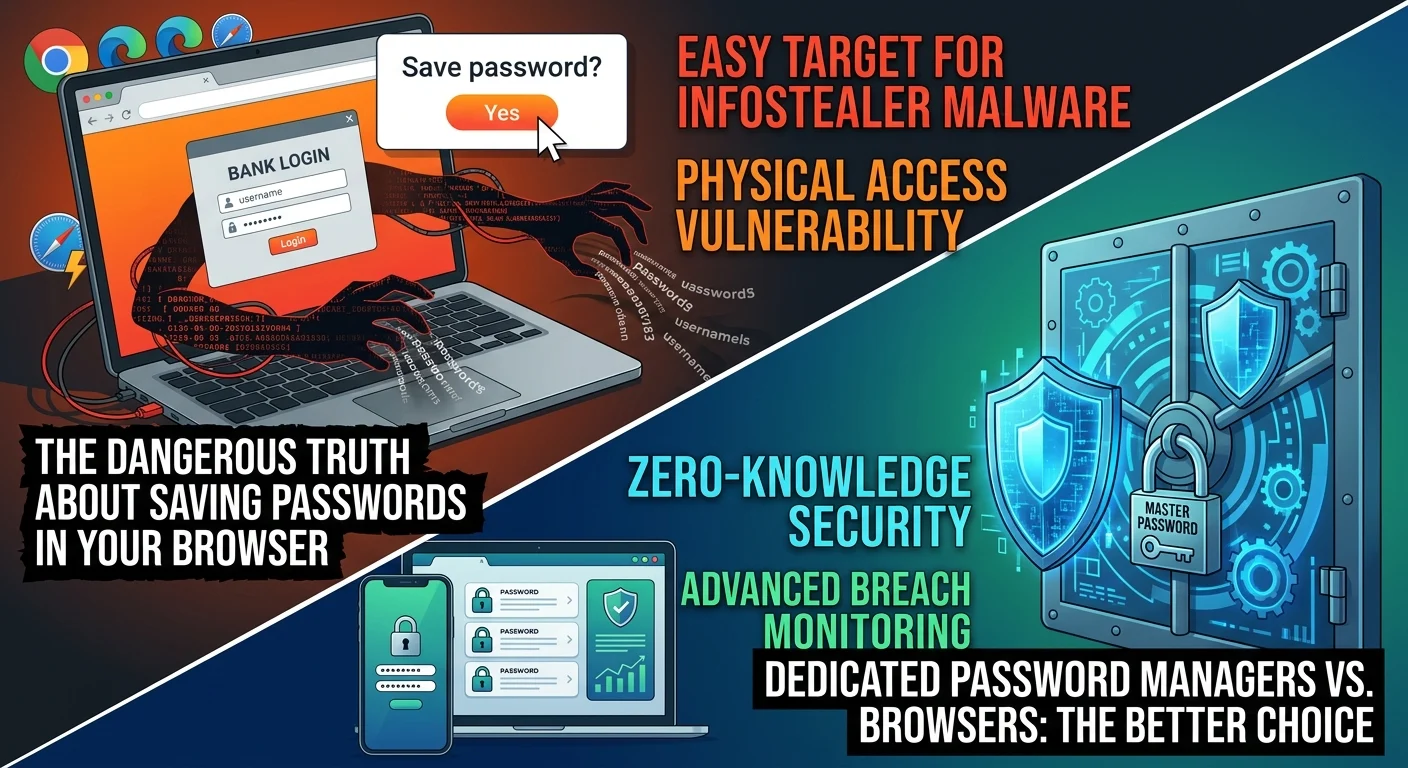
We have all done it. You sign up for a new online service, and a little box pops up in the top right corner of your screen asking if you want to save your login. It is incredibly tempting to just click “Yes” and let your browser handle the rest. However, saving passwords in your browser is one of the most dangerous digital habits you can have, exposing your bank accounts, emails, and personal identity to cybercriminals within seconds.
Your web browser is built for browsing, not for high-level security. While tech giants have built-in credential managers, these tools are fundamentally different from dedicated security software.
Here is the thing. Browsers prioritize convenience over absolute safety. They want your online experience to be as smooth as possible. Because of this, they store your login details in local databases on your hard drive. While these databases are technically encrypted, the decryption keys are often stored on the very same machine, making them surprisingly easy to crack.
The Dangerous Truth About Saving Passwords in Your Browser
When you rely on Chrome, Edge, or Safari to hold the keys to your digital life, you are opening yourself up to a range of severe security threats. Cybercriminals know exactly where browsers keep this data, and they have built highly specialized tools to extract it.
The Rise of Infostealer Malware
This is the single biggest threat to your browser-stored credentials. Modern cybercriminals do not need to hack into massive corporate servers to get your passwords. Instead, they use lightweight, silent programs called infostealer malware.
Strains like Lumma Stealer and RedLine are incredibly common. They often sneak onto your device through a fake software update, a malicious email attachment, or a compromised website. Once inside, the malware bypasses traditional antivirus software, scans your browser’s local database, and extracts every single saved username and password in a matter of seconds.
The Threat of Physical Access
What happens if you leave your laptop open on a coffee shop table for two minutes, or if your phone gets stolen? If you use a dedicated password manager, an outsider still cannot access your vault without your master password or biometric scan.
But with browser-saved credentials, anyone who gains physical access to your device can easily view your passwords. In many browsers, a user can go straight into the settings menu and export the entire list of passwords as an unencrypted file. No hacking skills required.
The Cloud Syncing Trap
Most of us sync our browsers across our phones, laptops, and tablets. It is convenient, but it also creates a single point of failure.
If a hacker compromises your primary Google or Microsoft account, they instantly get access to every single synced password across all your devices. By trying to make your life easier, you have essentially handed a thief a master key to your entire digital footprint.
Dedicated Password Managers vs. Browsers
So what does that mean for you? It means it is time to move your credentials to a tool that was actually built to protect them. Standalone password managers are vastly superior to built-in browser tools for several key reasons.
- Zero-Knowledge Architecture: Dedicated managers encrypt your data locally using a master password that only you know. Even the company hosting your vault cannot see your passwords.
- Isolated Memory: Standalone apps do not store decryption keys in easily accessible local browser files, meaning infostealer malware cannot simply scrape them.
- Cross-Platform Security: They work across all your devices and browsers without requiring you to sync your entire browser profile.
- Advanced Features: You get built-in breach monitoring, password strength audits, and secure sharing options that browsers simply do not offer.
If you want to take your security seriously, see our guide on [how to choose the right password manager] to find a secure, dedicated vault that fits your daily routine.
How to Secure Your Accounts Today
Making the switch is easier than you think, and it will immediately lower your risk of falling victim to a devastating data breach.
First, download a reputable, dedicated password manager like Bitwarden or 1Password. Most of these tools have built-in import features that can pull your existing credentials straight from your browser in one click.
Next, go into your browser settings, export your saved passwords, and then delete them entirely from the browser’s history.
Finally, turn off the autofill and auto-save prompts. In Chrome, Safari, or Edge, navigate to the password settings and toggle off “Offer to save passwords” and “Auto Sign-in.”
Taking these simple steps might add an extra second or two to your login process, but the peace of mind is absolutely worth it. Do not wait for a notification that your accounts have been compromised before you decide to make the change.