(302) 262 8484
Windows 11 is Finally Modernizing the Mouse Pointer Indicator After 20 Years

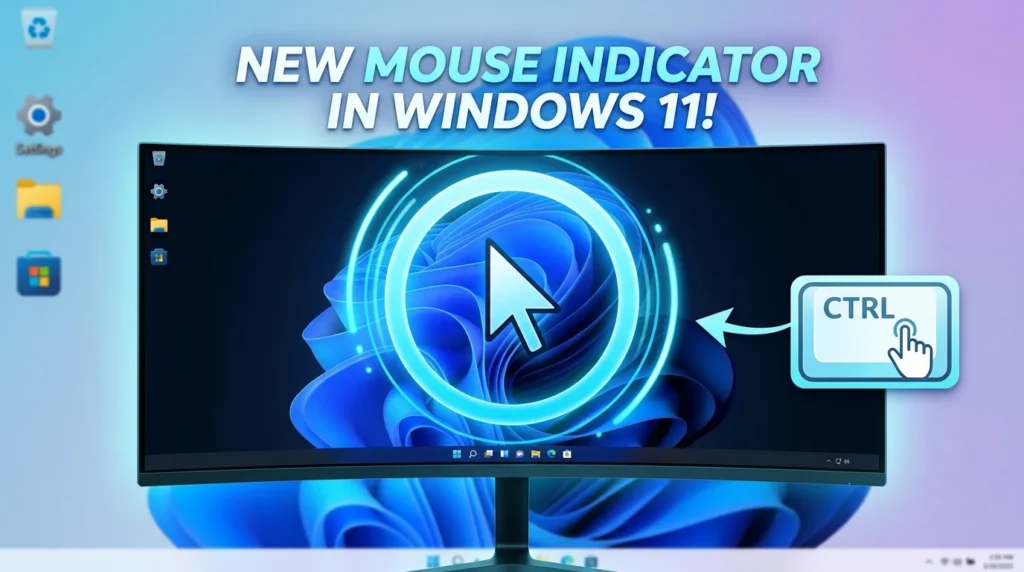
If you’ve ever lost your cursor on one of those massive, ultra-wide monitors, you probably know the old trick. You just tap the Ctrl key to trigger that little radar circle. Well, Microsoft is finally upgrading this ancient tool with the new **modern mouse indicator in Windows 11 26H2**. It breathes some much-needed life into a feature that hasn’t really been touched in over twenty years.
Why the Modern Mouse Indicator in Windows 11 26H2 Actually Matters
Let’s be honest. That classic cursor locator was showing its age. Sure, Microsoft moved the toggle into the modern Settings app a few years back. But the visual indicator itself? It still used the exact same pixelated circle animation from the Windows XP days. It worked. But it looked completely out of place on a polished modern desktop.
The new **modern mouse indicator in Windows 11 26H2** fixes all of that. Microsoft rebuilt the whole thing from scratch with modern code. Now, it has a fluid, high-frame-rate animation that actually matches the design language of the rest of the operating system. It’s clean. It’s minimal. And it gets your attention without being distracting.
It’s honestly about time Microsoft cleaned up these legacy corners of the operating system. A modern OS should feel completely cohesive, right down to the smallest utility animations, and for those who want to test new features safely, using the Windows secret sandbox feature is a great way to experiment.
How the New Pointer Locator Actually Works
The basic functionality is still wonderfully simple. You just tap the Ctrl key to flash a smooth, modern circle right around your cursor. But Microsoft didn’t stop at a fresh coat of paint. They also baked in a highly requested power feature that completely changes how you deal with a lost pointer.
Using the Modern Mouse Indicator in Windows 11 26H2 with a New Shortcut
Here’s the thing. Sometimes a quick flash just isn’t enough. Especially if you’re presenting on a projector or managing a setup with multiple giant screens. In Windows 11 Build 26340.9233, Microsoft added a brilliant new toggle: “Keep indicator visible until dismissed.”
Turn this on, and you can trigger a persistent mouse highlight that stays glued to your screen indefinitely. This is massively helpful for creators, teachers, or anyone who needs to guide an audience’s eyes across a busy interface.
So, how do you control this new persistent indicator? Microsoft mapped it directly to a brand-new global keyboard shortcut:
- To activate: Hit Win + Ctrl + Shift + M to lock the modern mouse indicator right on your screen.
- To dismiss: Just press the exact same shortcut again, hit the Esc key, or simply click anywhere on your screen.
This setup is heavily inspired by Microsoft PowerToys, which already offered a similar screen-dimming focus tool. Bringing this kind of functionality natively into the core Windows experience is a huge win for accessibility.
How to Enable the Modern Mouse Indicator in Windows 11 26H2 Right Now
Right now, this feature is rolling out to Windows Insiders in the Experimental channel as part of Build 26340.9233. Because it’s still in testing, Microsoft has it hidden away behind developer flags. If you want to try it out today, you’ll need to use a popular third-party tool called ViveTool to force it on.
Before you start, just make sure you’re actually running the right Insider preview build. Once you verify your system version, follow these steps to unlock the feature:
- Go to GitHub and download the newest release of ViVeTool.
- Extract the downloaded zip file into a folder on your computer that’s easy to find.
- Open up the Start menu, search for Command Prompt, right-click it, and pick Run as administrator.
- In the command window, point it to your extracted folder by typing
cd your-folder-locationand hitting Enter. - Type in this exact command and press Enter:
vivetool /enable /id:27829265,61457898 - Restart your computer so the changes take effect.
Once your PC boots back up, head into **Settings > Accessibility > Mouse pointer and touch**. You should spot the brand-new toggle to keep the indicator visible until dismissed. If you ever want to go back to the old behavior, just run that exact same command but swap out /enable with /disable.
Is It Really Worth the Effort?
If you’re already running the Insider builds, turning this on is a no-brainer. The smoother animations and that new persistent highlight option just make the whole desktop experience feel a lot more premium. It’s a tiny detail. But it’s one you’ll probably appreciate every single day.
Now, if you’re on the stable version of Windows 11 and don’t want to risk running experimental builds, don’t sweat it. You really don’t have to wait for the official release of the **modern mouse indicator in Windows 11 26H2**. You can get almost the exact same functionality today by installing Microsoft PowerToys. It’s free, and it’s completely safe for your daily work machine. For a few other ways to supercharge your desktop, check out our guide on [maximizing Windows 11 productivity with PowerToys].